
In today’s fast-moving digital world, customers expect quick replies. They do not want to wait. They want answers now. This is where Google My Business Messaging becomes powerful.
This guide explains everything in a clear and simple way. You will learn what it is, why it matters, and how to use it to generate more leads. We will also show how tools like GBPGM make the process faster and easier.
What is Google My Business Messaging?
Google My Business Messaging is a feature that allows customers to message your business directly from your Google Business Profile.
Customers can find your business on Google Search or Maps and send a message instantly. No calls. No emails. Just quick chat.
Example:
-
A customer in New York City searches for “best coffee near me”
-
They find your business
-
They click “Chat”
-
They ask: “Do you have vegan options?”
If you reply fast, you win the lead.
Why Google My Business Messaging Matters for Lead Generation
1. Instant Communication Builds Trust
People trust businesses that respond quickly. Fast replies show professionalism.
2. Higher Conversion Rates
A quick reply can turn a visitor into a paying customer.
3. Better Local SEO Signals
Active engagement improves your profile performance on Google.
4. Mobile-First Advantage
Most users search from mobile. Messaging fits perfectly into their behavior.
Key Benefits of Google My Business Messaging
Real-Time Customer Interaction
You connect with customers instantly.
Increased Engagement
More conversations mean more opportunities.
Better Customer Experience
Quick answers improve satisfaction.
Competitive Edge
Many businesses still do not use this feature.
How Google My Business Messaging Works
Here is a simple flow:
-
Customer finds your business
-
Customer clicks “Chat”
-
Customer sends a message
-
You receive and reply
That’s it. Simple and effective.
How to Enable Google My Business Messaging (Via Google Platform)
Google provides a basic way to enable messaging. But it has limitations.
Steps:
-
Go to your Google Business Profile
-
Click “Edit Profile”
-
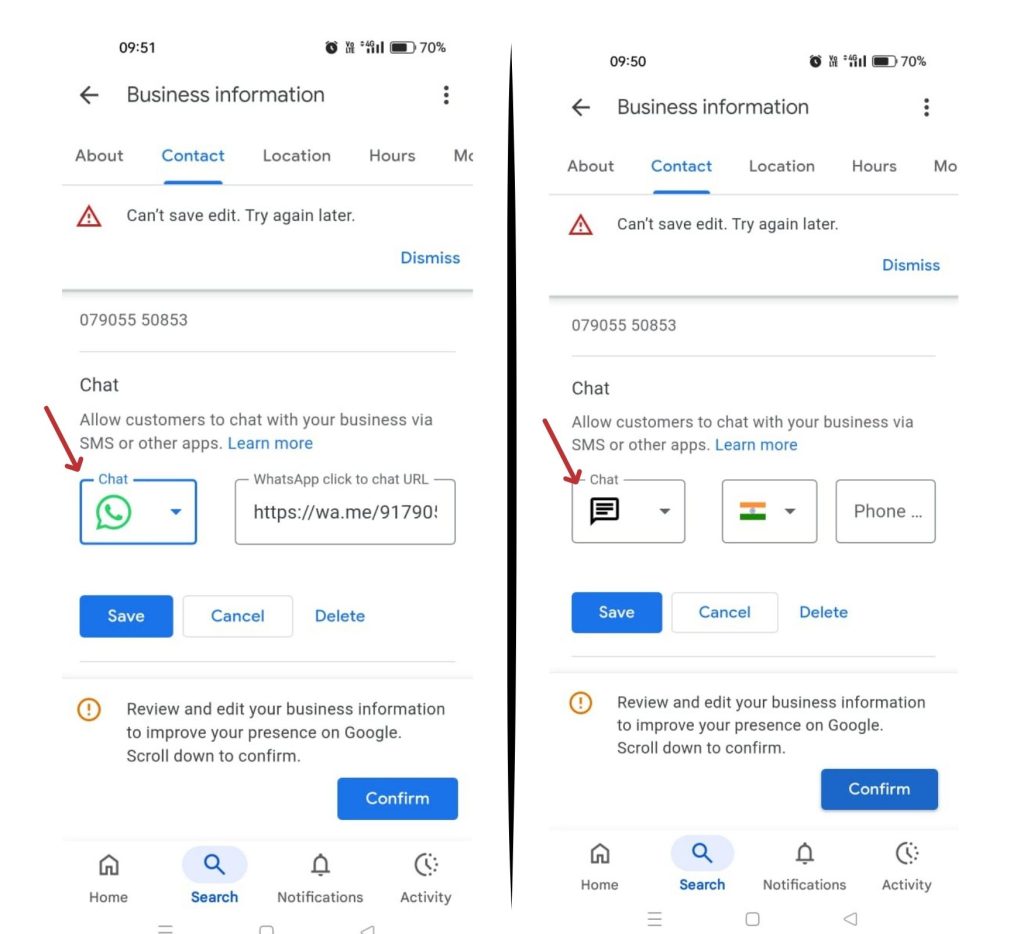
Select “Contact”
-
Add your phone number or messaging option
-
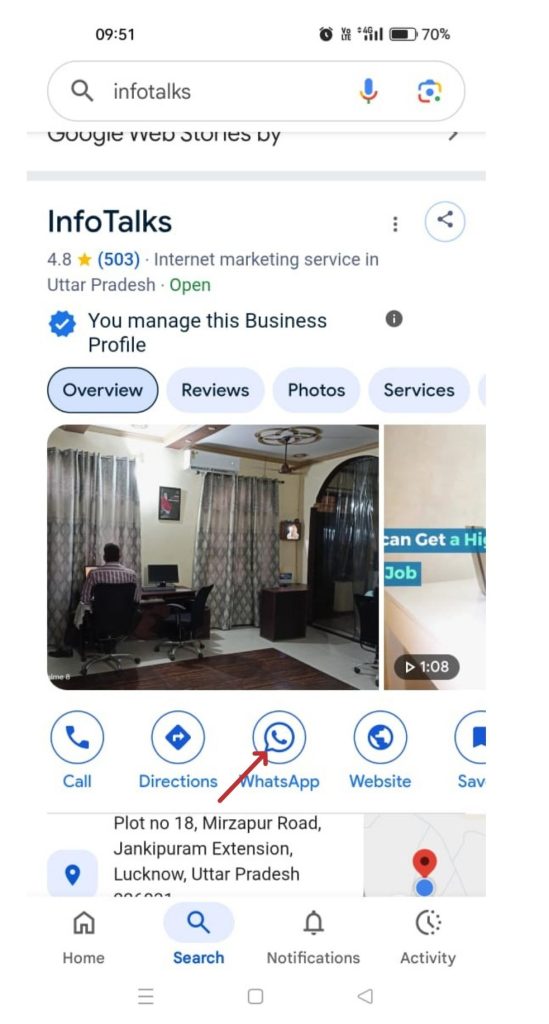
Save changes and it is shown below:
Limitations of Google’s Method
-
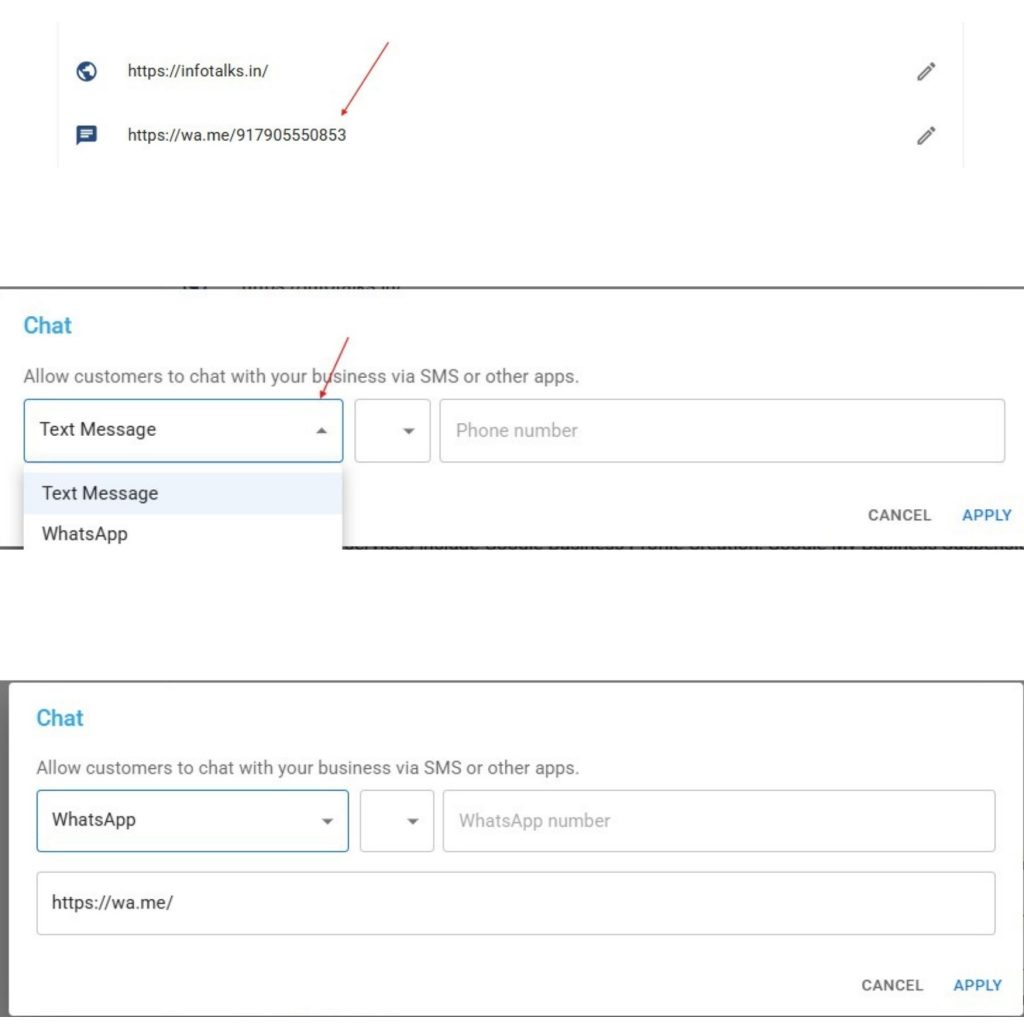
You must manually add a text number or WhatsApp link
-
Many users find it difficult to generate a WhatsApp link
-
Google shows only the text number when both numbers are updated.
-
Limited control over what is displayed
The Smarter Way: Enable Messaging with GBPGM Tool
This is where GBPGM (Google Business Profile Growth Manager) becomes powerful.
It simplifies everything.
Why GBPGM is Better Than Google’s Platform
| Feature | Google Platform | GBPGM Tool |
|---|---|---|
| WhatsApp link setup | Manual | Automatic |
| Display options | Limited | Full control |
| Ease of use | Moderate | Very easy |
| Flexibility | Low | High |
What Makes GBPGM Unique?
-
You can choose what to display:
-
Text number
-
WhatsApp number
-
-
It automatically generates your WhatsApp link
-
No technical setup needed
-
Saves time and avoids errors
Step-by-Step Guide to Enable Messaging Using GBPGM
Follow these simple steps:
Step 1: Log in to GBPGM
Access your dashboard.
Step 2: Select Your Business Profile
Choose the listing (in case of multiple business or branches) you want to optimize.
Step 3: Navigate to “info” section which is on the left side bar.
Find the messaging or chat feature section.
Step 4: Choose Your Preferred Option
Select what you want to show:
-
Phone number
-
WhatsApp number
Step 5: Auto-Generate WhatsApp Link
GBPGM creates it automatically.
Step 6: Save
Your messaging feature goes live.
Real-World Use Cases
Restaurant in London
A restaurant uses messaging to confirm reservations instantly.
Salon in Dubai
Customers ask about available slots and book quickly.
Digital Agency in Singapore
Leads ask for pricing and services via chat.
Retail Store in Sydney
Customers check product availability before visiting.
Best Practices to Get More Leads
1. Respond Quickly
Aim to reply within minutes.
2. Use Simple Language
Keep messages clear and helpful.
3. Add FAQs as Quick Replies
Save time and improve efficiency.
4. Stay Professional
Always maintain a polite tone.
5. Track Conversations
Learn what customers ask most.
Common Mistakes to Avoid
-
Slow response time
-
Incomplete information
-
Ignoring messages
-
Not using automation tools
-
Using complex or unclear replies
How Messaging Improves Local SEO
Messaging increases engagement signals. Google sees this as a positive sign.
This can help:
-
Improve local rankings
-
Increase visibility
-
Drive more clicks and conversions
Future of Google My Business Messaging
Messaging will become even more important. Customers prefer chat over calls.
Businesses that adopt early will gain a strong advantage.
Conclusion
Google My Business Messaging is not just a feature. It is a powerful lead generation tool.
It helps you connect, engage, and convert faster.
While Google offers a basic setup, tools like GBPGM take it to the next level. They simplify the process, improve flexibility, and save time.
If you want more leads and better engagement, start using messaging today.
Frequently Asked Questions (FAQs)
1. Is Google My Business Messaging free?
Yes. Google provides this feature for free.
2. Can I use WhatsApp with Google Business Profile?
Yes, but setup is easier with tools like GBPGM.
3. How fast should I respond to messages?
Ideally, within a few minutes or hours.
4. Does messaging help SEO?
Yes. It improves engagement and local ranking signals.
5. What is the best way to enable messaging?
Using GBPGM is the easiest and most efficient option.
